How Much Does Image Compression Actually Save? We Measured 12 Files
Every compression tool advertises the same thing: a big percentage, usually around 80%, next to a photo of a mountain. Almost none of them tell you when it does not work.
So we measured our own. Twelve files, through CMeIn's image compressor, with the output bytes read back off the compressed file rather than off a marketing slide. Here is what actually happened, including the two results that make us look bad.
The short answer
At the tool's default setting, an ordinary JPG photograph lost 62% of its file size. That is the number most people will see, and it held steady across every photo we tried.
The useful findings are the ones on either side of it.
How we measured
Four source images, each picked for a different compression behaviour:
- a portrait — a man at a cafe table, soft daylight, shallow focus
- a detailed photograph — a forest floor, sharp from edge to edge
- a flat graphic — three solid shapes on a plain ground
- a UI screenshot — small text, crisp edges, flat colour
Each was saved as JPG, PNG and WebP, giving twelve inputs, all 1024 × 1024. Each was fed to the compressor in a browser at its default quality of 75, keeping the same output format, so no part of the saving comes from switching formats. Run on Chrome 152, macOS.
The results
| Image | Format | Original | Compressed | Saved |
|---|---|---|---|---|
| Portrait | JPG | 206,791 | 78,705 | 62% |
| Portrait | WebP | 139,474 | 53,054 | 62% |
| Portrait | PNG | 1,489,713 | 1,374,492 | 8% |
| Detailed photo | JPG | 619,639 | 280,289 | 55% |
| Detailed photo | WebP | 559,438 | 335,248 | 40% |
| Detailed photo | PNG | 2,535,310 | 2,424,435 | 4% |
| Flat graphic | JPG | 56,260 | 18,951 | 66% |
| Flat graphic | WebP | 18,014 | 9,658 | 46% |
| Flat graphic | PNG | 208,980 | 173,245 | 17% |
| UI screenshot | JPG | 116,685 | 50,526 | 57% |
| UI screenshot | WebP | 47,898 | 30,204 | 37% |
| UI screenshot | PNG | 362,512 | 307,527 | 15% |
Sizes in bytes.
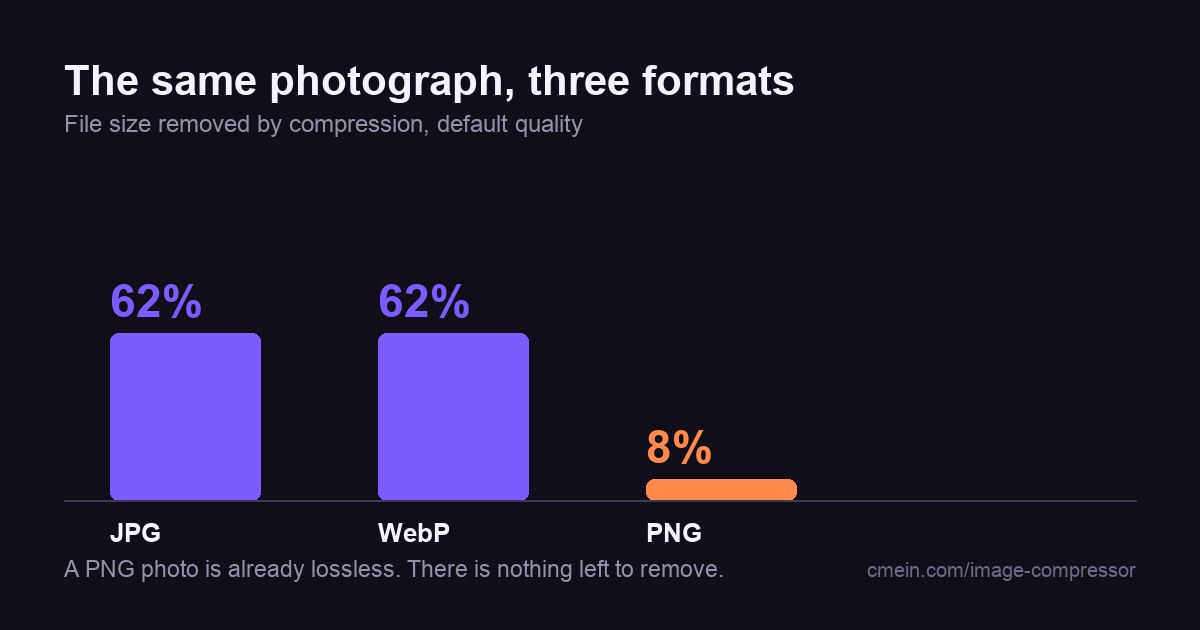
A PNG photograph barely compresses at all
The forest photograph as a PNG was the biggest file in the set at 2.48 MB. Compressing it saved 4%. The portrait PNG managed 8%.
This is not a flaw in the tool, and no other tool will do better. PNG is lossless — it is not allowed to throw anything away. All it can do is find repetition, and a photograph is almost entirely non-repeating. There is nothing to find.
If you have a 2 MB PNG photo that needs to be small, compressing it is the wrong move. Converting it is the right one. The same picture as a JPG started at 620 KB — a quarter of the size, before any compression at all.
PNG earns its keep where there is flatness to exploit. The solid-shape graphic, which is mostly large areas of one colour, gave back 17%. That is the shape of content PNG was designed for.
Turning the quality up can double your file size
The compressor defaults to quality 75. It is tempting to push that higher, on the assumption that higher is safer.
It is not, and the failure is dramatic. A JPG that has already been compressed once has artefacts baked into it. Re-encoding at a high quality does not recover the lost detail — it faithfully preserves the damage, in more bytes than the original used.
The same 202 KB portrait JPG, at four settings:
| Quality | Result | Change |
|---|---|---|
| 50 | 44,850 | −78% |
| 75 (default) | 78,705 | −62% |
| 95 | 255,463 | +24% |
| 100 | 413,486 | +100% |
At quality 100 the file came out exactly twice the size it went in. Our tool catches this and reports the result as "larger" instead of pretending there was a saving, but plenty of tools will happily hand you a bigger file and call it compressed.
If a file comes back bigger, the setting is too high, not too low.
The percentage is about the codec. The final size is about the picture.
Every JPG in the set landed between 55% and 66%, regardless of subject. That consistency is a property of the encoder, not of the image.
What changed was where each one finished. The detailed photograph still weighed 280 KB after a 55% cut. The flat graphic finished at 19 KB. Both "worked". Only one of them is small.
So a percentage is the wrong target. If you need a file under 100 KB, start from what it has to contain, not from how much you hope to remove.
What this does not tell you
Being straight about the limits, because a benchmark without them is advertising:
- The source images were generated rather than photographed. They carry no sensor noise and no lens softness, both of which affect how real camera files compress. A phone photo of the same scene would not behave identically.
- One resolution, one browser, one machine. Nothing here measures speed.
- No perceptual quality scoring. "Saved 62%" says nothing about whether the result still looks right — and on the screenshot at quality 50, it does not. Small text is the first thing lossy compression destroys.
Try it on your own file
The compressor runs in your browser. The image is never uploaded, there is no account, and it shows you both file sizes before you download anything — so you can check these numbers against your own photo rather than taking ours.
If your file comes back larger, now you know why.