How to Add Image to a Photo Like a Professional
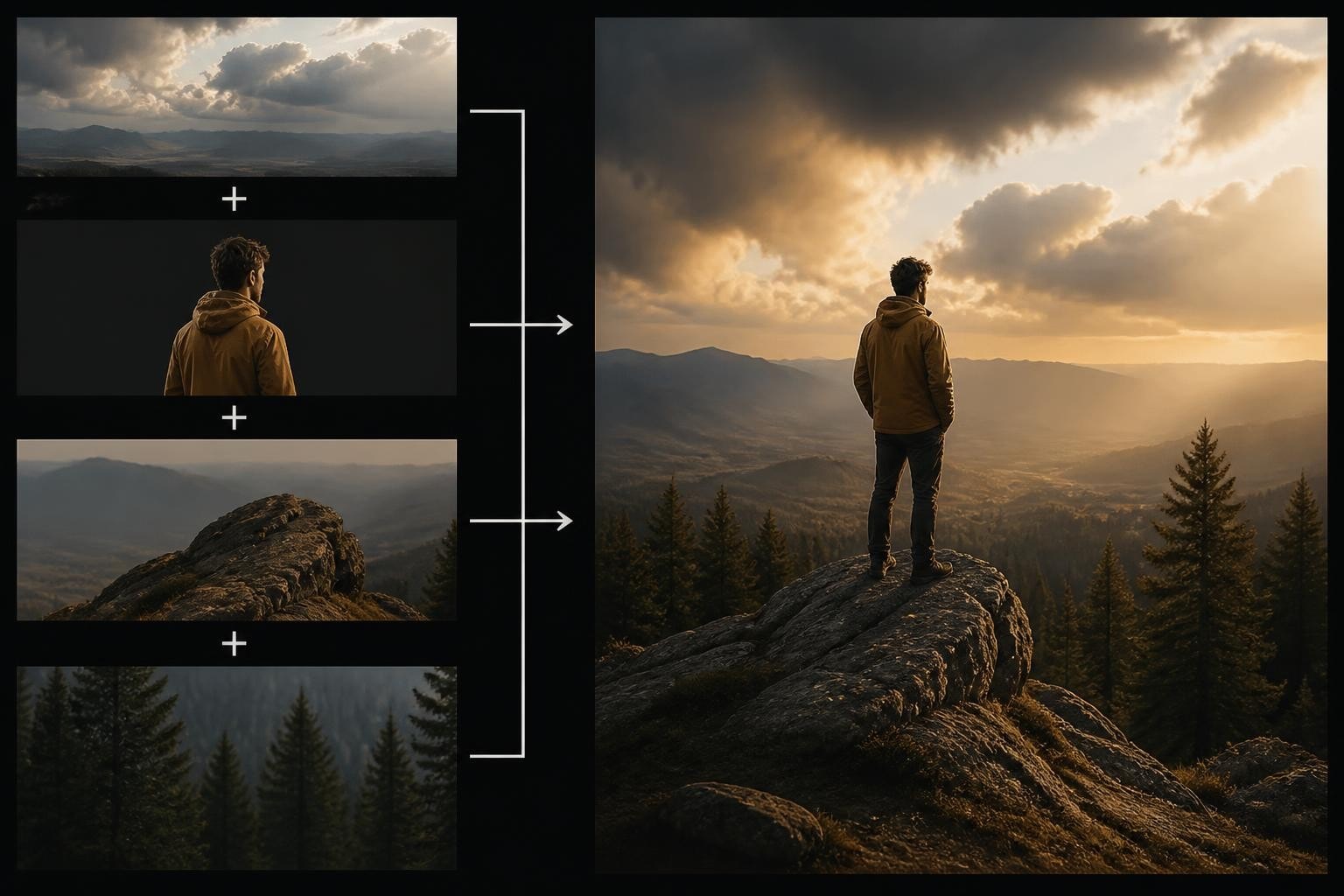
Photo composition has evolved far beyond simple filters and adjustments. When you add image to a photo, you're creating a composite that combines multiple visual elements into a single frame. This technique powers everything from professional advertising campaigns to personal social media content. Whether you're placing yourself into a new background, adding graphical elements, or merging multiple photographs, understanding the fundamentals of image layering ensures your final result looks natural and cohesive. The difference between amateur and professional composites lies in attention to lighting, perspective, and edge blending.
Understanding Image Compositing Fundamentals
When you add image to a photo, you're performing a composite operation that requires careful consideration of multiple technical factors. The base layer serves as your foundation, while additional images become overlay layers that must integrate seamlessly.
Layer-Based Editing Architecture
Modern photo editing relies on non-destructive layer systems that preserve your original images while allowing unlimited adjustments. Each layer functions independently, giving you control over opacity, blending modes, and positioning.
Key layer properties include:
- Opacity control for transparent overlays and subtle blending
- Blending modes that determine how pixels interact between layers
- Layer masks that define which portions remain visible
- Smart objects that maintain original image quality during scaling
The order of your layers matters significantly. Background elements sit at the bottom of the stack, while foreground subjects occupy higher positions. This hierarchy mirrors real-world depth perception and helps maintain visual logic.
Technical Considerations for Successful Composites
Before you add image to a photo, evaluate the technical compatibility of your source materials. Resolution mismatches create quality problems, while inconsistent lighting betrays the composite nature of your final image.
| Factor | Requirement | Why It Matters |
|---|---|---|
| Resolution | Match or exceed base image | Prevents pixelation and quality loss |
| Color space | Consistent RGB or CMYK | Ensures accurate color reproduction |
| Bit depth | 16-bit preferred for editing | Maintains tonal range during adjustments |
| File format | Lossless (PNG, TIFF, PSD) | Preserves quality through multiple saves |
Professional compositors spend significant time matching lighting direction, intensity, and color temperature across all elements. Light behaves consistently in physical space, so your composite must respect these physical laws to appear believable.
Methods to Add Image to a Photo
Different tools and techniques serve different purposes when combining images. Your choice depends on the complexity of your composite, your technical skill level, and your output requirements.
Desktop Software Solutions
Professional desktop applications offer the most control when you add image to a photo. Adobe Photoshop remains the industry standard, providing advanced masking, adjustment layers, and blending capabilities that handle complex compositing scenarios.
GIMP offers powerful free alternatives for users who need professional-grade layer operations without the subscription cost. The learning curve mirrors Photoshop, but the community-driven tutorial ecosystem helps new users master essential techniques.
Desktop workflow advantages:
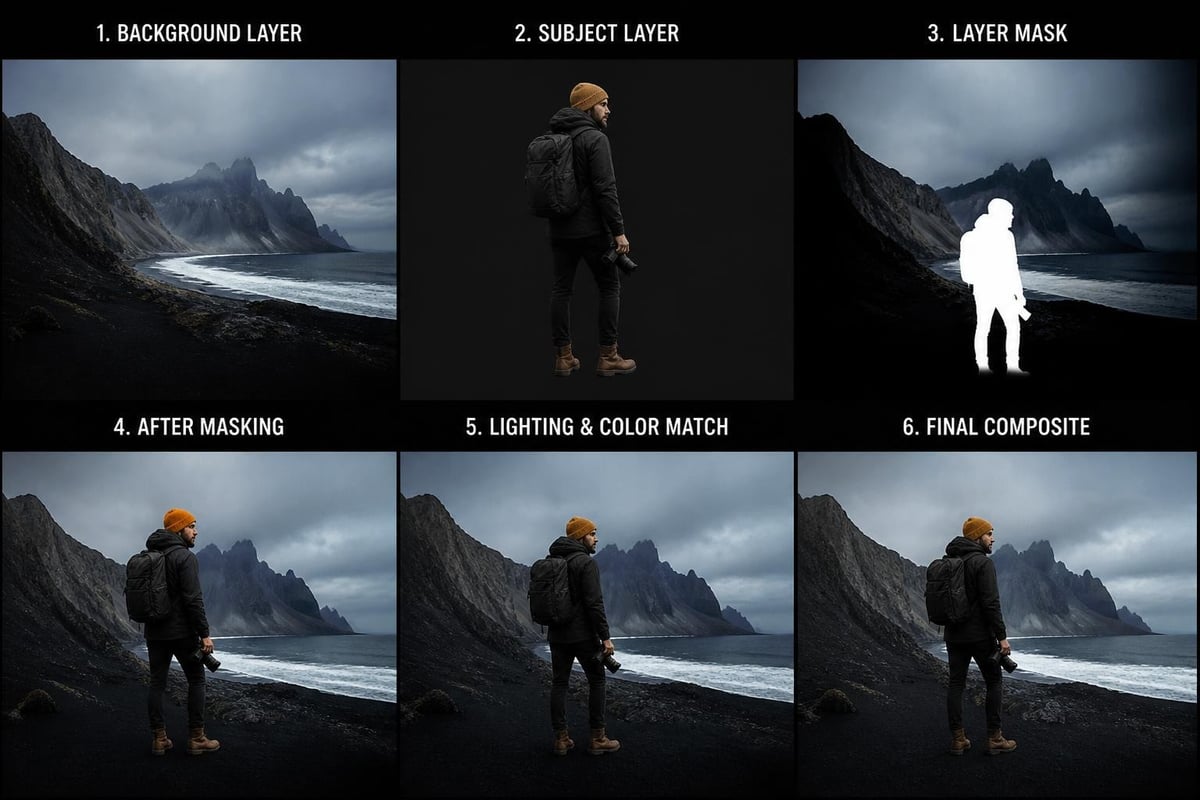
- Precise selection tools for clean edge extraction
- Non-destructive adjustment layers for lighting and color matching
- Advanced masking capabilities for complex blending
- High-resolution output without quality compromise
- Support for professional color management systems
When working with desktop software to add image to a photo, start by placing your subject on a transparent layer above your background. Use selection tools to isolate the subject, then refine edges with feathering and contrast adjustments. The matching lighting tutorial from PHLEARN demonstrates professional techniques for making added elements appear naturally lit within their new environment.
Mobile Editing Applications
Modern smartphones pack surprising compositing power into pocket-sized devices. Native tools and third-party applications let you add image to a photo directly on your mobile device, perfect for quick social media posts or travel scenarios.
Apple's built-in Markup tools handle simple overlays, text additions, and shape elements for straightforward composite needs. More sophisticated apps provide layer systems that rival desktop software functionality.
The mobile workflow trades precision for convenience. Touchscreen interfaces work well for broad adjustments but struggle with pixel-level refinement. Consider mobile editing for projects where speed matters more than absolute perfection.
AI-Powered Compositing Solutions
Artificial intelligence has revolutionized how creators add image to a photo by automating complex technical processes. AI systems handle background removal, edge refinement, and lighting adjustments that traditionally required manual expertise.
These platforms analyze your source images and generate composites that maintain photographic realism. Rather than manually masking and blending, you provide reference photos and select desired scenes. The AI engine handles perspective matching, shadow generation, and color harmonization automatically.
For dating profiles, social media presence, and professional headshots, AI-generated photos maintain your true likeness while placing you in polished, professionally composed scenes. This approach delivers consistent results without requiring technical editing skills.
Matching Visual Elements Across Layers
The technical challenge of compositing lies in making disparate images appear as if they were captured together in a single moment. This requires careful attention to lighting, color, and perspective across all layers.
Lighting and Shadow Consistency
Light direction must remain consistent across every element when you add image to a photo. Examine your base image to identify the primary light source position, then ensure added elements show highlights and shadows from the same direction.
Shadow creation checklist:
- Analyze base image shadow length and softness
- Create shadow layers beneath subject layers
- Apply gaussian blur to match existing shadow edges
- Adjust shadow opacity based on ambient light intensity
- Add color tint matching environmental light temperature
Hard shadows indicate strong directional light sources like direct sunlight. Soft shadows suggest diffused lighting from overcast conditions or indirect sources. Your added elements must respect this lighting character.
Color Grading and Temperature Matching
Color temperature varies based on lighting conditions, time of day, and environmental factors. When you add image to a photo taken at golden hour, that warm amber cast must extend to every layer in your composite.
Use adjustment layers to shift color temperature, saturation, and tonal curves. Sample colors from your base image using the eyedropper tool, then apply complementary adjustments to added elements. This harmonizes the palette across your entire composition.
| Lighting Condition | Color Temperature | Adjustment Strategy |
|---|---|---|
| Direct sunlight (midday) | 5000-6500K | Cool, neutral tones with strong contrast |
| Golden hour | 2500-3500K | Warm amber shift across all layers |
| Overcast daylight | 6500-8000K | Slight blue shift, reduced contrast |
| Indoor tungsten | 2700-3200K | Strong warm correction needed |
The X-Rite color management guidance proves essential when your composites will appear across multiple display devices or in print. Proper color profiles ensure your carefully matched elements maintain their relationships regardless of output medium.
Perspective and Scale Alignment
Objects photographed from different camera positions exhibit different perspective distortion. When you add image to a photo, the vanishing points and horizon lines must align across all elements.
Wide-angle lenses create more distortion than telephoto lenses. A subject photographed with a 24mm lens won't integrate convincingly into a background shot with an 85mm lens. The different compression ratios create immediate visual discord.
Match the apparent camera height across elements. Eye-level shots integrate with other eye-level perspectives, while low-angle shots require matching low-angle elements. This consistency maintains the spatial logic viewers expect from genuine photographs.

Edge Blending and Integration Techniques
Clean edges separate professional composites from obvious cut-and-paste jobs. When you add image to a photo, the transition zones between layers require careful refinement.
Selection and Masking Strategies
Initial selections define which pixels transfer from your source image to your composite. Selection quality determines how much refinement work follows.
Effective selection methods:
- Magic Wand tool for solid-color backgrounds with clear contrast
- Quick Selection brush for complex shapes with defined edges
- Pen tool paths for hard-edged objects requiring precision
- Channel-based selections for fine detail like hair and fur
- AI-powered subject selection for automated isolation
After creating your base selection, refine the edge transition zone. Feathering adds gradual transparency that prevents hard cutout appearance. Contract or expand selections by one or two pixels to eliminate color fringing from the original background.
Layer Mask Refinement
Layer masks control visibility without deleting pixels, preserving editing flexibility as you add image to a photo. Black areas hide, white areas reveal, and gray values create partial transparency.
Use soft brushes at low opacity to paint gradual transitions in mask areas. Build up the effect through multiple strokes rather than aggressive single passes. This creates organic-looking blends that mimic natural edge softness.
The Refine Edge or Select and Mask workspace in Photoshop provides specialized controls for edge adjustment. Shift edge boundaries, smooth jagged selections, increase contrast for clarity, or reduce contamination from background color bleed.
Atmospheric Perspective Application
Distant objects appear less saturated and lower in contrast than near objects due to atmospheric haze. When you add image to a photo with significant depth, apply progressive desaturation and contrast reduction to background elements.
This technique reinforces spatial depth and makes composites more convincing. Foreground subjects maintain full color intensity while background layers fade slightly, matching how human vision perceives layered depth.
Resolution and Quality Management
Output quality depends on maintaining adequate resolution throughout your compositing workflow. Degradation occurs when you scale images beyond their native resolution or use lossy file formats.
Working Resolution Best Practices
Begin every project at your intended final output size or larger. Scaling up reveals pixelation, while scaling down maintains quality. When you add image to a photo, ensure added elements match or exceed the base image resolution.
Resolution guidelines by output type:
- Social media posts: 1080 x 1080 pixels minimum
- Dating profile photos: 2000 pixels on longest edge
- Professional headshots: 3000 x 4000 pixels for print flexibility
- Large-format printing: 300 DPI at final physical dimensions
Smart objects preserve original image data when scaling. Convert layers to smart objects before resizing, allowing non-destructive adjustments that maintain maximum quality.
File Format Selection for Workflows
Different file formats serve different purposes in the compositing workflow. When you add image to a photo, format choice impacts quality retention and editing flexibility.
| Format | Best Use | Advantages | Limitations |
|---|---|---|---|
| PSD | Working files | Full layer support, non-destructive | Large file size |
| TIFF | High-quality storage | Lossless, layer support option | Very large files |
| PNG | Web with transparency | Lossless compression, alpha channel | Larger than JPEG |
| JPEG | Final web delivery | Small file size, universal support | Lossy compression |
Save working files as PSD or TIFF to preserve all layers and editing capability. Export final composites as PNG for social media when transparency matters, or JPEG when file size takes priority over absolute quality.
Practical Applications for Personal Branding
Understanding how to add image to a photo enables sophisticated personal branding across digital platforms. Your visual presence shapes perception, and compositing gives you control over every aspect of that presentation.
Social Media Profile Optimization
Platform algorithms favor visually engaging content that generates interaction. Composited images that place you in compelling contexts drive higher engagement than standard snapshots.
Dating profile photo selection requires balancing authenticity with aspirational presentation. The goal isn't deception but rather showcasing your genuine self in flattering, context-rich scenarios that communicate personality and lifestyle.
Professional social platforms demand different visual approaches than casual networks. LinkedIn profiles benefit from clean, professional environments, while Instagram permits more creative and lifestyle-focused compositions.
Creating Consistent Visual Identity
When you add image to a photo across multiple platforms, maintain consistent styling that reinforces brand recognition. This includes similar color grading, composition styles, and environmental choices.
Develop a signature look through repeated application of specific adjustment layers, filters, or compositing techniques. Consistency builds visual coherence that strengthens your personal brand identity.
For professional contexts, AI headshot generators provide consistent quality across team members or personal brand updates without scheduling photographer sessions.
Legal and Ethical Considerations
Copyright protections apply to photographic works, creating legal obligations when you add image to a photo using third-party content. Understanding these requirements protects you from infringement claims.
Source Image Licensing Requirements
Stock photography services provide clear licensing terms that specify permitted uses. Commercial applications typically require extended licenses, while personal projects may qualify for standard licenses.
Free image repositories like Unsplash and Pexels offer generous licenses but still impose restrictions on certain uses. Always review specific license terms before incorporating images into composites you'll publish or monetize.
Wikimedia Commons licensing guidelines explain attribution requirements and usage restrictions for publicly available images. Proper attribution protects both the original creator's rights and your legal position.
Transparency in AI-Generated Content
Platform policies increasingly require disclosure when content includes AI-generated elements. When you add image to a photo using AI compositing tools, review platform terms to understand disclosure requirements.
Authenticity matters particularly for dating profiles and professional networking. While enhanced photos remain acceptable, misrepresenting appearance or creating entirely fictional scenarios crosses ethical boundaries that damage trust.
The standard should be "could this photo have been taken?" rather than "is this precisely how it was captured?" Professional retouching and scene selection differ fundamentally from fabricating impossible scenarios or altering fundamental appearance.
Advanced Compositing Techniques
Once you master basic layer operations, advanced techniques unlock creative possibilities that transcend simple image combinations.
Blend Mode Mastery
Blending modes control how pixel values interact between layers when you add image to a photo. Each mode uses different mathematical formulas to combine layer data.
Common blend modes and applications:
- Multiply darkens by multiplying base layer values (shadows and depth)
- Screen lightens by inverting and multiplying (highlights and light effects)
- Overlay combines multiply and screen (contrast and vibrancy)
- Soft Light applies subtle lighting adjustments (gentle enhancement)
- Color transfers hue and saturation only (recoloring without affecting luminosity)
Experiment with blend modes at reduced opacity for subtle effects. Combining multiple adjustment layers at various blend modes creates complex, nuanced results impossible with single-layer adjustments.
Displacement Mapping and Texture Integration
Advanced compositors use displacement maps to warp overlaid images according to underlying surface texture. This technique makes added graphics appear printed or painted onto three-dimensional surfaces.
When you add image to a photo of fabric, for example, displacement mapping conforms the added image to the fabric's folds and wrinkles. The result appears naturally integrated rather than flat and pasted.
Focus and Depth of Field Matching
Photographs exhibit specific depth of field characteristics based on aperture settings. Shallow depth of field blurs backgrounds while sharp focus extends throughout deep depth of field images.
When you add image to a photo, match the focus characteristics of your added elements to the base image. Apply appropriate blur to background layers in shallow focus scenarios, or maintain sharpness across all elements for deep focus compositions.
Lens blur filters simulate optical characteristics of camera lenses more convincingly than simple gaussian blur. Shape the bokeh pattern, adjust blur amount by depth, and add chromatic aberration for photorealistic results.
Workflow Optimization for Efficiency
Developing systematic workflows reduces time investment when you add image to a photo regularly. Consistent processes minimize errors and accelerate production.
Template Creation and Reuse
Build template files with pre-configured layer structures, adjustment layers, and smart objects. These templates standardize your approach and eliminate repetitive setup tasks.
Save frequently used adjustment combinations as layer groups you can import into new projects. This library of reusable elements streamlines your workflow significantly.
Batch Processing for Consistent Output
When applying identical adjustments across multiple composites, batch processing automates repetitive tasks. Record actions for common operation sequences, then apply them to entire folders of images.
Batch operations work well for standardized outputs like profile photos requiring identical dimensions, color grading, and export settings. Manual refinement follows automated processing for elements requiring individual attention.
Quality Control Checkpoints
Establish review points throughout your workflow to catch issues before they compound. When you add image to a photo, check these elements at each stage:
- Initial placement: Scale, position, and rotation accuracy
- Edge refinement: Clean masks without artifacts or fringing
- Lighting match: Consistent direction, intensity, and color temperature
- Perspective alignment: Matching vanishing points and horizon lines
- Final polish: Overall color harmony, sharpness, and detail preservation
View composites at 100% zoom to inspect edge quality and detail. Step back to evaluate overall composition and lighting at reduced view sizes. Both perspectives reveal different issues requiring correction.
Mastering the technical and creative aspects of compositing empowers you to create professional-quality images that serve your personal and professional goals. Whether you choose manual editing in desktop software or leverage AI-powered automation, the principles of lighting match, perspective alignment, and edge blending remain constant. CMeIn simplifies this entire process by generating realistic photos that maintain your true likeness across thousands of professionally designed scenes, eliminating the technical complexity while delivering results that look authentically you.