How to Add a Person in a Picture With AI

You can add a person in a picture with AI by uploading the base photo, marking where the person should appear, and supplying a second photo or a text prompt so the tool can generate and blend the new figure into the scene. The process takes minutes, but the quality depends on lighting, scale, and how closely the added person matches the original image. For singles building a dating profile, the stakes are higher than for a casual edit: the final photo has to look like you, because the person who meets you in real life will compare the two.
This article covers how the technology works, the main methods available, how to get a clean blend, and where editing a photo stops being helpful and starts working against you.
How Can AI Add a Person to a Photo?
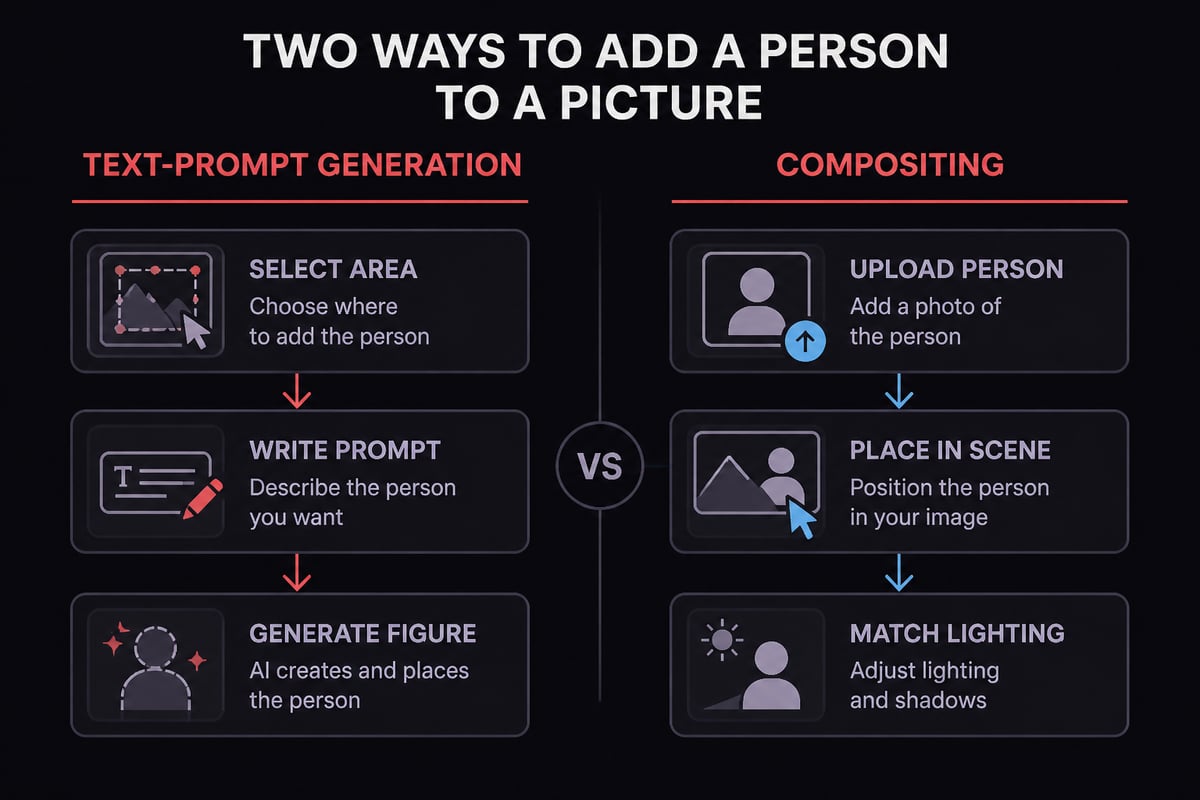
AI adds a person to a photo through generative models that read the scene, predict what belongs in a selected area, and render a figure that matches the surrounding light, color, and perspective. Most tools fall into two groups: those that generate a person from a text description, and those that take a real photo of a person and composite it into a different image.
The generative approach is the more common route in mainstream editors. In Photoshop on the web, the Adobe Help documentation describes the workflow as uploading an image, making a selection, choosing Generative Fill, entering a prompt, and generating the result. Adobe also notes that each Generative Fill generation uses one standard generative credit, so repeated attempts have a real cost.
The compositing approach works differently. You supply a cutout or a full photo of the person, and the tool places them into the target scene, then adjusts edges, shadows, and tone. Adobe offers a Harmonize feature that can adjust lighting, colors, and shadows to help a pasted-in subject look more integrated, which addresses one of the most visible flaws in older cut-and-paste edits.
What Are the Main Ways to Add Someone to a Picture?
There are four practical routes: generative fill in a full editor, dedicated online "add person" tools, mobile apps, and manual compositing. Each trades control against speed.
- Generative fill in a full editor. You select an empty area and describe the person. Control is high, but the result is an invented figure, not a specific individual.
- Dedicated online tools. You upload two photos and the service merges them. These are fast and usually need no design skill, though background removal and scale matching can be uneven.
- Mobile apps. Convenient for quick group-photo fixes, with the tightest limits on resolution and blending quality.
- Manual compositing. Cut out the person, paste them into the scene, then correct color, shadow, and edge softness by hand. It takes the longest and gives the most believable result when done well.
Adobe's step-by-step tutorial on adding objects with Generative Fill shows the selection-and-prompt method in practice.
For a phone-only workflow, the practical path is a mobile app or browser-based tool that accepts two uploads. Face-recognition features on a phone, such as grouping people in your gallery, are separate from editing and will not place anyone into a new photo.
How Do You Get a Realistic Result?
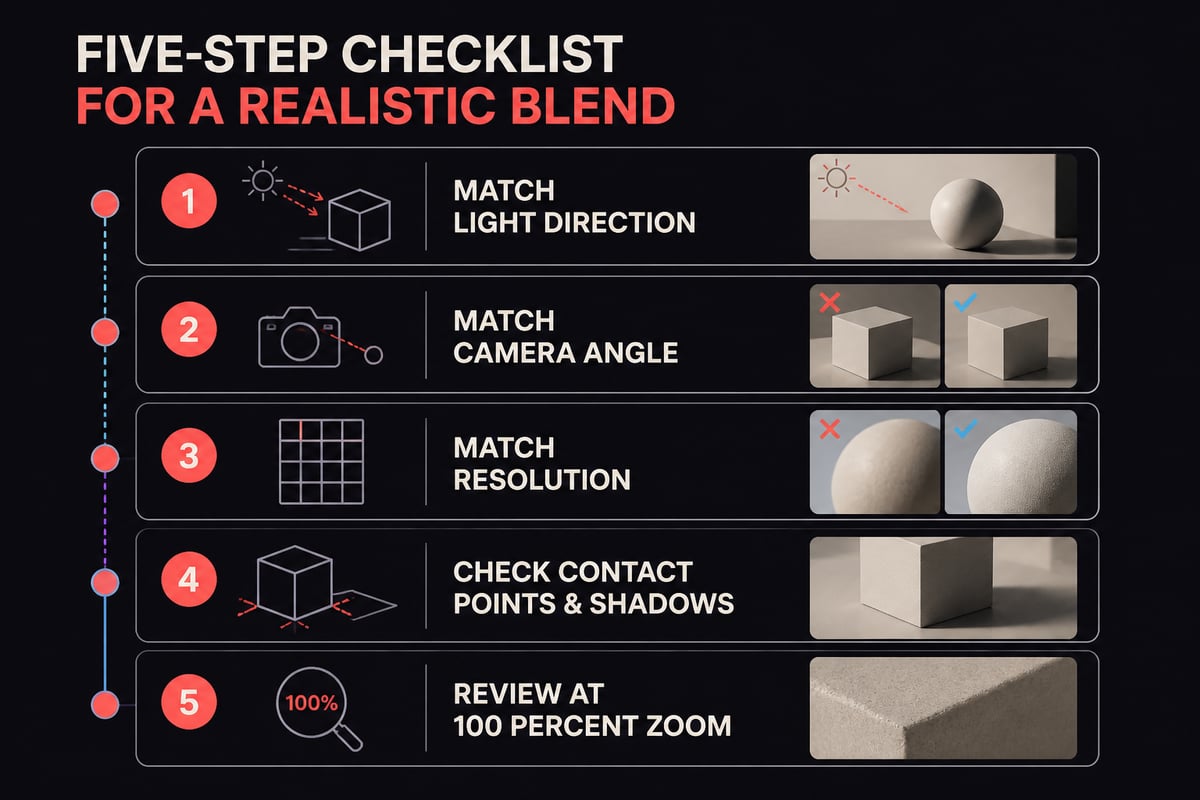
A realistic result comes from matching four things between the two images: light direction, scale, perspective, and image quality. Skipping any one of them produces the pasted-in look that viewers notice within a second.
Work through this checklist before you generate:
- Match the light. If the base photo is lit from the left by late afternoon sun, choose a source photo with similar direction and warmth.
- Match the camera angle. A person photographed from above will not sit convincingly in a scene shot at eye level.
- Match the resolution. A sharp subject in a soft background reads as fake. Use source images of comparable sharpness.
- Check the contact points. Feet, hands, and any shared surface need shadows and overlap that make physical sense.
- Review at full size. Zoom to 100 percent and inspect hair edges, fingers, and shadows, which are where generated figures most often fail.
Generate several variations rather than accepting the first. Since each attempt can carry a cost, as with the credit system noted above, a few deliberate tries beat many random ones.
Is There a Free Way to Edit Faces and Add People?
Yes, free tiers exist for many editing tools, but they typically cap resolution, add watermarks, or limit how many generations you can run each day. Free face-editing apps are widely available for phones, and most offer basic swaps, filters, and cutouts without payment.
The trade-off deserves attention. Free tools are funded somehow, often through data collection, ads, or upsells. CMeIn has written about why free AI photo tools are rarely the actual product, and the same logic applies to editing apps: read what happens to your uploads before you submit a face. For a photo you plan to publish on a dating app, a watermark or low resolution can undercut the whole effort.
Which Reasons Make Sense for Adding a Person?
Adding a person is reasonable when the goal is to restore or complete a real moment, and risky when the goal is to create one that never happened. The legitimate uses are well understood:
- Including a family member who missed a group shot.
- Completing a memorial or anniversary image with someone who could not attend.
- Placing yourself into a scene from a trip where you were the one holding the camera.
- Creating a clean composite for a creative project or social post.
One caution applies to every case: only use a face you have permission to use. Placing another person's likeness into an image without their consent raises both ethical and, in some places, legal problems. The same applies in reverse. If you are the person being added, you should know where the image will appear.

Why Edited Photos Create Problems on Dating Apps
On a dating app, any edit that changes who appears in the photo or how you look works against you, because the match is going to meet the real person. A composite that places you at a rooftop party or beside a group of friends you never stood with may pass a quick glance, but it creates a gap between your profile and your life that surfaces on the first date.
The pattern is consistent: people respond to photos that look candid and specific. Guidance on what photos work best on dating apps points toward clear faces, real settings, and natural framing, not heavily manipulated images. A pasted-in figure, a smoothed face, or an impossible background all read as inauthentic, and viewers have become quick at spotting them.
There is also a practical review concern. Photos with obvious generation artifacts can fail automated checks, which is why it is worth understanding whether AI dating photos pass a face check before you upload anything. Editing someone else into your picture, or yourself into a scene, adds another layer of risk with little upside.
If your real problem is that you have few good photos of yourself in interesting places, editing a person into a picture solves the wrong thing. The better fix is a set of photos in which you appear naturally, in believable settings.
A Better Route: Generate Photos of Yourself in Real Scenes
If your goal is to appear in a scene you could not photograph, such as a trip, an event, or a lifestyle shot, generating a realistic image of yourself is more honest and more useful than compositing. CMeIn builds social-style images from your reference photos, placing you in real places and candid framing rather than studio backdrops, and keeps your face as it is with no smoothing, slimming, or beautifying.

That distinction matters for singles on dating apps. The image should still look like the person who walks through the door, so the likeness stays intact while the setting changes. Uploads are private by default and you buy a credit pack and pay only for what you generate. You can review the options on the pricing page.
For a closer look at how this works in practice, see CMeIn's walkthroughs on creating AI photos of yourself and realistic AI photos of yourself. If you are weighing whether a platform allows this kind of image, AI photos on dating apps covers the policy side.
How Do You Choose the Right Approach?
Choose by asking what the final image needs to prove. If it is a keepsake or a creative piece, a composite is fine. If it is a profile photo meant to attract someone who will meet you, favor realism and likeness over spectacle.
A short decision guide:
- Completing a family photo: use a dedicated add-person tool or manual compositing, and get permission from everyone shown.
- Fixing an empty corner of a landscape: generative fill with a short, specific prompt.
- Building a dating profile: skip compositing and generate photos that show you as you are, in believable places.
- Needing a polished professional image: a headshot workflow is a better fit than a group edit.
Whatever you pick, test the result by viewing it on a phone at normal size, then at full zoom. If either view raises doubts, adjust before publishing.
FAQ
Can AI add people to a photo?
Yes. Generative editors can create a new figure from a text prompt, and compositing tools can place a real person from a second photo into your scene. Results vary with how well the lighting, scale, and perspective match.
How do I add someone as a person on photos?
Upload your base photo to an editor or online tool, mark the spot where the person should appear, and provide either a prompt or a second photo of them. Generate a few variations and review each at full size before saving.
How do I get my iPhone to recognize faces in photos?
The Photos app groups and names people automatically in its People album, and you can confirm or correct names there. This organizes your library only. It does not edit images or place anyone into a new picture.
Start by picking two or three recent photos of yourself in clear light, then decide whether you need an edit at all or simply better images of you in real settings. If a believable set of photos is what your profile is missing, CMeIn can build it from your own reference shots, so you can start with your photos and see how you look in scenes you could not capture yourself. Review the CMeIn photo types to see which scenes fit your profile.