How to Upload Image Photos to CMeIn and Get Your Results

To upload an image, choose a clear, recent photo in a common format such as JPG, PNG or HEIC, keep the file under the platform's size limit, and send it through the upload field or drag-and-drop area. For AI photo generation, the quality of what you send decides the quality of what you get back. A sharp, honest reference photo produces a result that looks like you; a blurry or heavily filtered one does not.
This guide covers the mechanics of uploading, the file rules you will run into, and the photo choices that matter most when your goal is a dating profile or a professional headshot that matches how you look in person.
What Does It Mean to Upload an Image?
Uploading an image means copying a photo file from your phone or computer to a website's server so the service can store, display or process it. The file travels over your internet connection and lands in the platform's storage, where it can be resized, analyzed or turned into something new.
Most upload tools work in one of three ways:
- Click to browse: you select a file from your device's folders or photo library.
- Drag and drop: you pull the file from a folder onto the page.
- Paste from clipboard: you copy a screenshot or image and paste it directly into the upload area.
The purpose varies. Image hosts give you a link to share. Online stores display your product photos. An AI photo service like CMeIn uses your uploads as reference material, so it can learn what your face looks like and place you in new, realistic scenes.
Which File Formats Can You Upload?
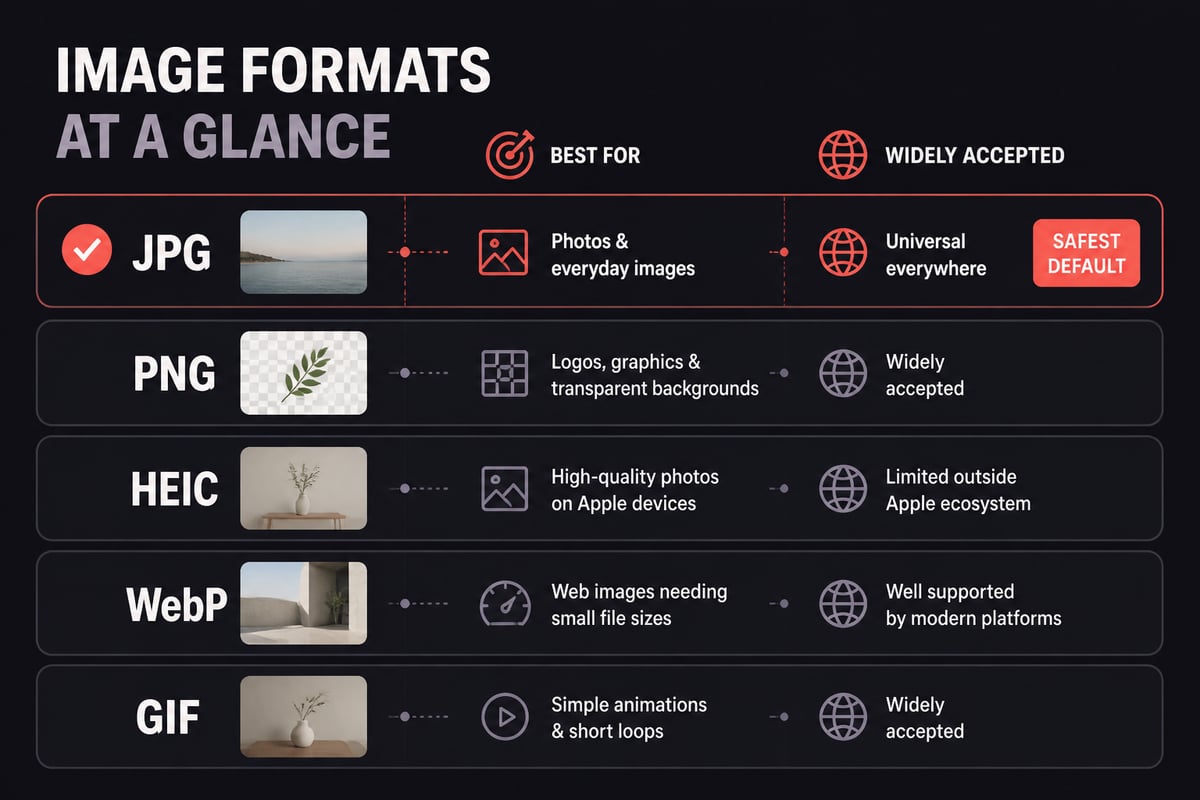
Nearly every upload tool accepts JPG and PNG, and most now accept WebP and HEIC as well. If you are unsure, JPG is the safest choice because every platform reads it.
Different services publish different lists. Google Photos Help lists JPG, HEIC, HEIF, PNG, WebP, GIF, AVIF and most RAW files as photo types that can be backed up. Shopify is narrower: its file upload requirements allow JPEG, PNG, WebP, HEIC or GIF.
If you shoot on an iPhone, your photos are likely saved as HEIC. Many tools read them without trouble, but a few reject them. When an upload fails, exporting the photo as a JPG is the fastest fix. For exact accepted types on CMeIn, check the upload screen or the site's product pages rather than assuming industry defaults apply.
How Large Can an Uploaded Image Be?
File size limits depend entirely on the platform, and they range from a few megabytes to a few hundred. Check the limit before you upload, because an oversized file is the most common reason for a failed attempt.
Here are a few published examples:
| Platform | Maximum file size | Notes |
|---|---|---|
| Shopify | 20 MB | 25-megapixel maximum resolution |
| Ithaca College web guide | 10 MB | Recommends at least 1,200 pixels wide |
| Google Photos API | 200 MB | For developer uploads |
Sources: Shopify Help Center, Ithaca College, Google for Developers.
If your file is too heavy, shrink it before uploading. An image compressor reduces file weight while keeping the picture usable, and an image resizer adjusts dimensions. If you want to understand what compression actually saves, this breakdown of how much image compression saves gives realistic expectations.
One caution for AI photo work: compress gently. Heavy compression adds blocky artifacts around the eyes and jawline, which are exactly the details a likeness depends on.
How to Upload an Image Step by Step
The process is nearly identical across tools, and it takes under a minute once your photos are ready.
- Pick your source photos. Choose files stored on your device, not thumbnails from a messaging app, which are often downscaled.
- Open the upload area. Look for a button labeled upload, add photos, or a drop zone.
- Select or drag your files. On mobile, you can usually choose from your camera roll or take a new photo directly.
- Wait for the progress bar to finish. Closing the tab early can leave you with a partial file.
- Confirm the preview. Check that the photo is oriented correctly and not cropped awkwardly.
- Submit or continue. Some tools process immediately; others wait for you to confirm.
If the photo shows up sideways, a quick rotate image fix before uploading saves a retry. If the frame includes people or clutter you do not want, a crop image pass can isolate your face and shoulders.
Why Does an Upload Fail?
Most failed uploads come down to four causes: the file is too large, the format is unsupported, the connection dropped, or the image was rejected after upload for quality reasons.
The first three are technical and fixable in a minute. Convert the format, reduce the size, or retry on a stable connection.
The fourth is quieter. A service may accept the file but still refuse to use it because the face is too small, covered, or unclear.
A short troubleshooting list:
- Switch from HEIC to JPG if the file type is refused.
- Move to Wi-Fi if mobile data keeps timing out.
- Try a different browser if the upload button does nothing.
- Re-export the photo from your gallery instead of sending a screenshot of it.

Which Photos Should You Upload for AI Results?
Upload clear, recent, unfiltered photos in which your face is fully visible and the lighting is even. This choice matters more than any technical setting, because the output can only reflect what the input shows.
For singles on dating apps, the goal is a result that matches how you look when a match meets you. That means your reference photos should show your real appearance today, not a version from five years ago. If you are unsure how current a photo should be, this piece on how old dating profile photos can be gives a practical answer.
For professionals building a LinkedIn profile or headshot, the same principle holds. A plain, well-lit photo of your face gives better material than a group shot or a cropped conference photo. More background is in this guide to professional headshots without a photographer.
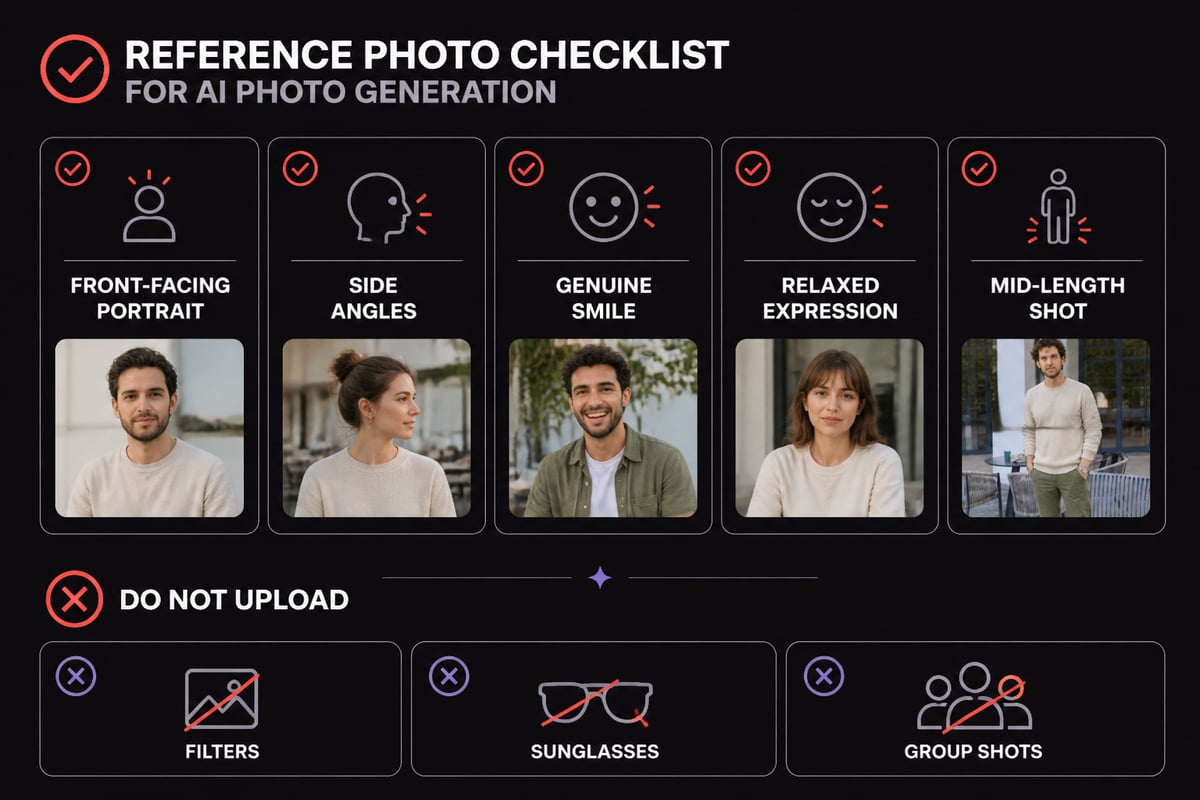
A reliable set of reference photos usually includes:
- A front-facing portrait in natural daylight
- A slight angle from each side
- One photo with a genuine smile and one with a relaxed expression
- A mid-length shot that shows your build and posture
Avoid sunglasses, hats that shade your eyes, heavy filters and beauty modes. CMeIn keeps your face as it is, with no smoothing, slimming or beautifying, so a filtered upload only teaches the system the wrong face.
How Do You Prepare Your Photos Before You Upload?
Preparation takes five minutes and prevents most problems. The aim is to hand over clean, honest source files, not edited ones.
Start by gathering six to ten candidates from your camera roll, then remove duplicates and anything where your face is partly hidden. Check each photo at full size, not as a thumbnail, and look at the eyes, since a soft focus there is the quickest way to weaken a result.
Keep edits minimal. Cropping and rotating are fine. Brightness correction is acceptable if a photo is very dark. Skip retouching, skin smoothing and any "enhance" button, because those alter the very features you want preserved.
If you want a second opinion on which photos are strongest before you commit, a profile review helps. CMeIn's dating profile review reads your photos and bio the way a photographer and a match would, giving a verdict on each photo, a suggested order, what is missing and a sharper version of your bio in your own words.
What Happens to Your Photos After You Upload Them?
That depends on the service, which is why privacy deserves a look before you send any face photo. Read the policy and confirm whether your files are stored, shared or used to train models.
With CMeIn, your uploads are private by default, and the service states that it does not use them to train models. That is a specific commitment worth checking for with any provider, since free tools often fund themselves with your data. The reasoning behind that trade-off is laid out in why free AI photo tools aren't the product, and a broader look at storage practices is in what happens to photos you upload.
Before you upload an image anywhere, ask three questions:
- Is the file stored after processing, and for how long?
- Can I delete it myself?
- Is it used to train a model or shared with third parties?
How Do You Use the Results on Dating Apps and LinkedIn?
Once your generated photos are ready, pick a small, varied set rather than posting everything. Variety in setting, expression and framing does more for a profile than volume.
On dating apps, lead with a clear, friendly solo photo, then add a full-length shot and one that shows you in a real place doing something you enjoy. If a photo of a trip or an outing suits your story, it can double as conversation material. A profile that hints at a real destination, such as a trip you have taken, gives matches an easy first message.
On LinkedIn, choose the plainest, most direct image: face centered, steady expression, uncluttered background. More guidance sits in this look at AI photos for LinkedIn.
CMeIn builds scenes in real places with candid framing instead of studio backdrops, so the results tend to read as natural. Because it works on any platform, the same set can serve a dating app, LinkedIn and Instagram. Confirm current pricing and terms on CMeIn's product pages before you generate anything.
How Can You Check That the Result Still Looks Like You?
Compare each generated photo against an unedited recent photo of yourself, and ask a friend who knows your face to do the same. The test is simple: would a match recognize you instantly at the table?
Look at features that shift easily: jawline, nose width, eye shape, skin texture, hairline and height proportions. If anything looks smoother, slimmer or younger than reality, do not use that image. A profile that overpromises creates an awkward first meeting, which is the opposite of what you want.
If you want to understand the whole process from reference photos to finished images, the guide to creating AI photos of yourself is a good companion.
What Are the Most Common Questions About Uploading Images?
Is it safe to upload an image of my face?
It is safe when the service states clearly how it stores and uses files. Look for private-by-default handling and a clear statement that uploads are not used for model training.
How many photos should I upload?
Follow the instructions on the upload screen, since each service sets its own range. Quality beats quantity: a handful of sharp, varied photos is better than a large batch of near-duplicates.
Should I upload a screenshot or the original file?
Upload the original. Screenshots lose resolution and often include interface elements that confuse analysis.
Can I upload an image from my phone?
Yes. Most upload tools work in a mobile browser and let you pick from your camera roll or take a new photo on the spot.
What if my file is too big?
Reduce it with a compressor or resizer before uploading, and keep the face clearly detailed. The size limits for CMeIn are listed on its upload screen and product pages.
Start by choosing three recent, unfiltered photos of your face in daylight and checking each one at full size. If you want a quick read on which of your current photos are working, run them through CMeIn's dating profile review first. When you are ready to see realistic scenes built from your own reference shots, start with your photos and generate images that look like the person your matches will actually meet.